
Centralize IAM by integrating Entra ID with AWS IAM Identity Center via SAML and SCIM.
- Hendrik Hagen
- Aws , Entra ID
- December 9, 2025
Table of Contents
Introduction
With the rise of SaaS offerings and cloud platforms like AWS, employees have to juggle an ever-growing collection of tools to get their day-to-day work done. As a result, identity management becomes cluttered, permission management grows increasingly opaque, and weak access controls heighten the risk of insider threats and ultimately leaving companies exposed.
In environments like this, having a central identity and access management solution becomes critical. It ensures a strong security posture, simplifies user and access administration, and provides better visibility into processes and user activity.
One solution to allow such centralized identity and access management is Microsoft Entra ID. As the cloud-based evolution of the well-known Azure Active Directory (Azure AD), Entra ID is widely adopted and remains one of the most popular IAM solutions in the cloud. One of its biggest strengths is the catalog of Enterprise Applications with SSO and SCIM provisioning support, enabling administrators to sync Entra ID identities, such as users and groups, to other platforms and manage access using Entra-based policies and permissions.
One popular Enterprise App integration is the AWS IAM Identity Center (formerly AWS SSO). Identity Center provides centralized workforce access to multiple AWS accounts and cloud applications. While it supports its own internal user directory, its full potential is realized when integrated with an external identity provider like Entra ID. Using SAML for SSO and SCIM for provisioning, Entra ID can sync users and groups into AWS IAM Identity Center, significantly simplifying identity management in AWS. Permissions in AWS can then be tied directly to Entra ID groups and SAML attributes, enabling a seamless and efficient access-management strategy in the cloud.
In this blog post, I’ll walk you through the process of setting up an Entra ID Enterprise Application for AWS IAM Identity Center. We’ll connect Microsoft Entra ID to Identity Center, sync users and groups, and build a streamlined, unified IAM setup across your cloud environment.
Workflow
I’d like to start by introducing the infrastructure we’re going to set up throughout this blog post. The architecture diagram below gives you a high-level overview of the components involved and the workflow we’ll build step by step. Our goal is to integrate Microsoft Entra ID with AWS IAM Identity Center by using an Entra ID Enterprise Application combined with a SAML-based SSO connection and SCIM provisioning for identity synchronization.
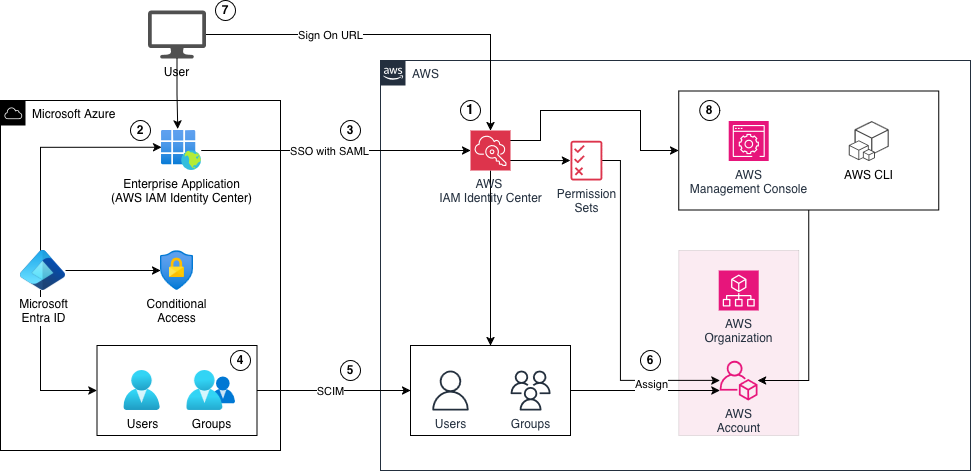
We begin by configuring AWS IAM Identity Center and creating a new identity source. By default, Identity Center uses its internal directory, but we will replace this with Microsoft Entra ID as the external identity provider.
Next, we’ll create an Enterprise Application for AWS IAM Identity Center in Microsoft Entra ID. This application will later allow us to assign Entra ID users and groups and grant them access to AWS through AWS IAM Identity Center.
After setting up the Enterprise Application, we’ll configure SSO between Entra ID and AWS IAM Identity Center using SAML. This enables users to log into AWS IAM Identity Center directly through the Entra ID Enterprise Application portal using SSO.
With SSO in place, we’ll create a few identities in Entra ID to demonstrate the integration. We’ll create a group in Entra ID, assign it to the Enterprise Application, and then create a sample user and add that user to the group. This setup allows us to manage AWS permissions centrally via Entra ID groups rather than individual user assignments.
To make these identities useful within AWS, we’ll configure SCIM provisioning between Entra ID and AWS IAM Identity Center. This will sync the users and groups we created in Entra ID over to AWS automatically.
Once the identities are synced, we’ll create Permission Sets in AWS IAM Identity Center and map the synced groups and Permission Sets to AWS accounts within our organization. This ensures that users assigned to our sample group in Entra ID automatically receive the correct permissions when accessing AWS through SSO.
After the group and Permission Set assignments are complete, we’ll switch to the user experience. We’ll log into the Entra ID Enterprise Application as our test user and initiate an SSO login into AWS IAM Identity Center using the application we created earlier.
Finally, once authenticated, we’ll access the AWS Console for one of the accounts using the Permission Sets we configured, confirming that our Entra ID to AWS IAM Identity Center integration is working end to end.
Setup SSO with SAML
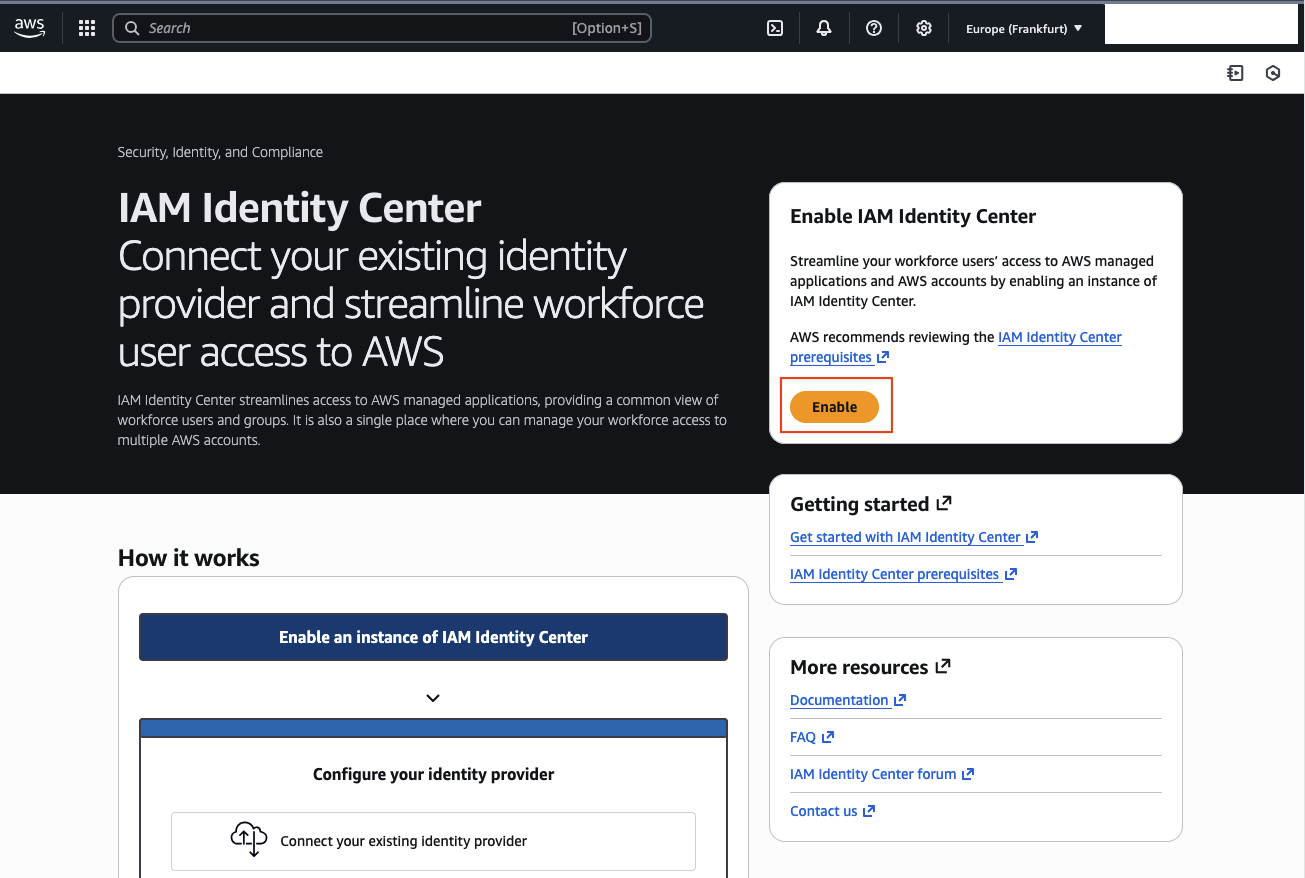
Start by enabling IAM Identity Center. Log in to the AWS Console, choose your preferred region, search for AWS IAM Identity Center, and click Enable.
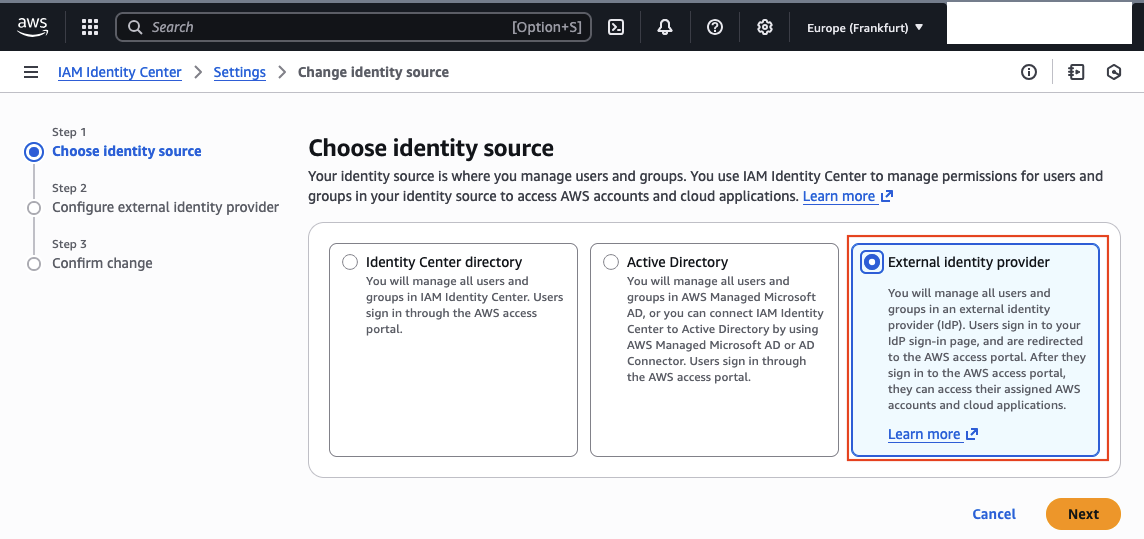
Once IAM Identity Center is active, change the identity source. Open Settings from the left-hand menu, scroll down, and open the Identity source tab. Select Action and Change identity source.

In the new window, choose External identity provider and continue with Next.
You will now see the AWS configuration details required for the external identity provider. Download the metadata file to simplify the setup in Entra ID, and make sure to note the AWS access portal sign-in URL. Leave the AWS Console open and switch to Entra ID.

In Entra ID, open Enterprise applications and create a new application.
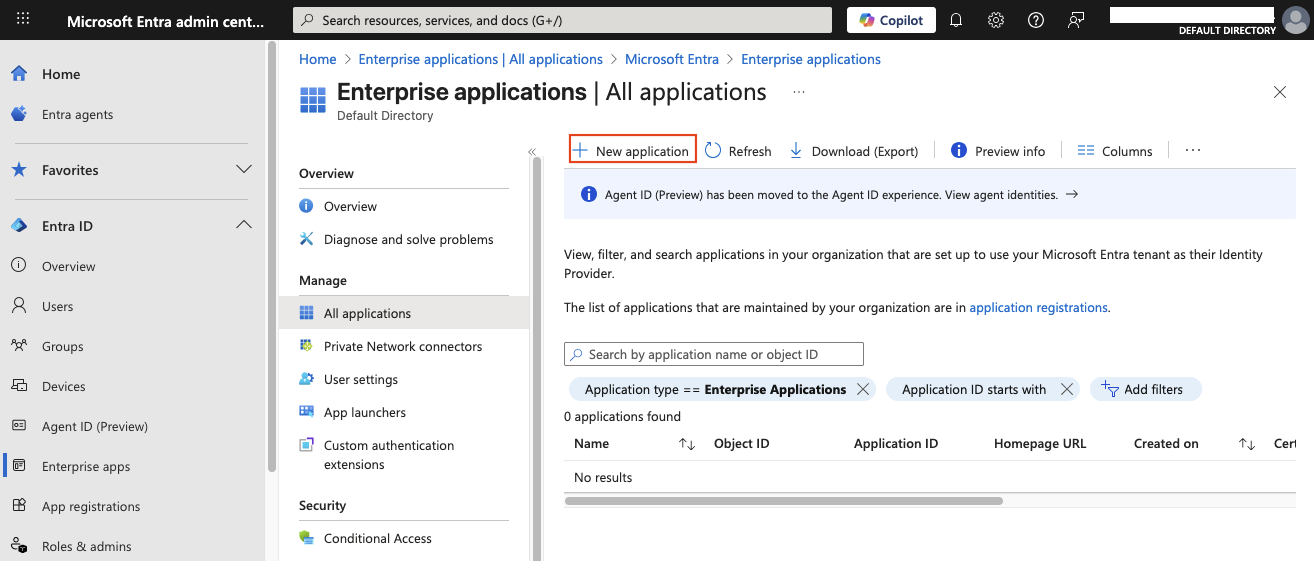
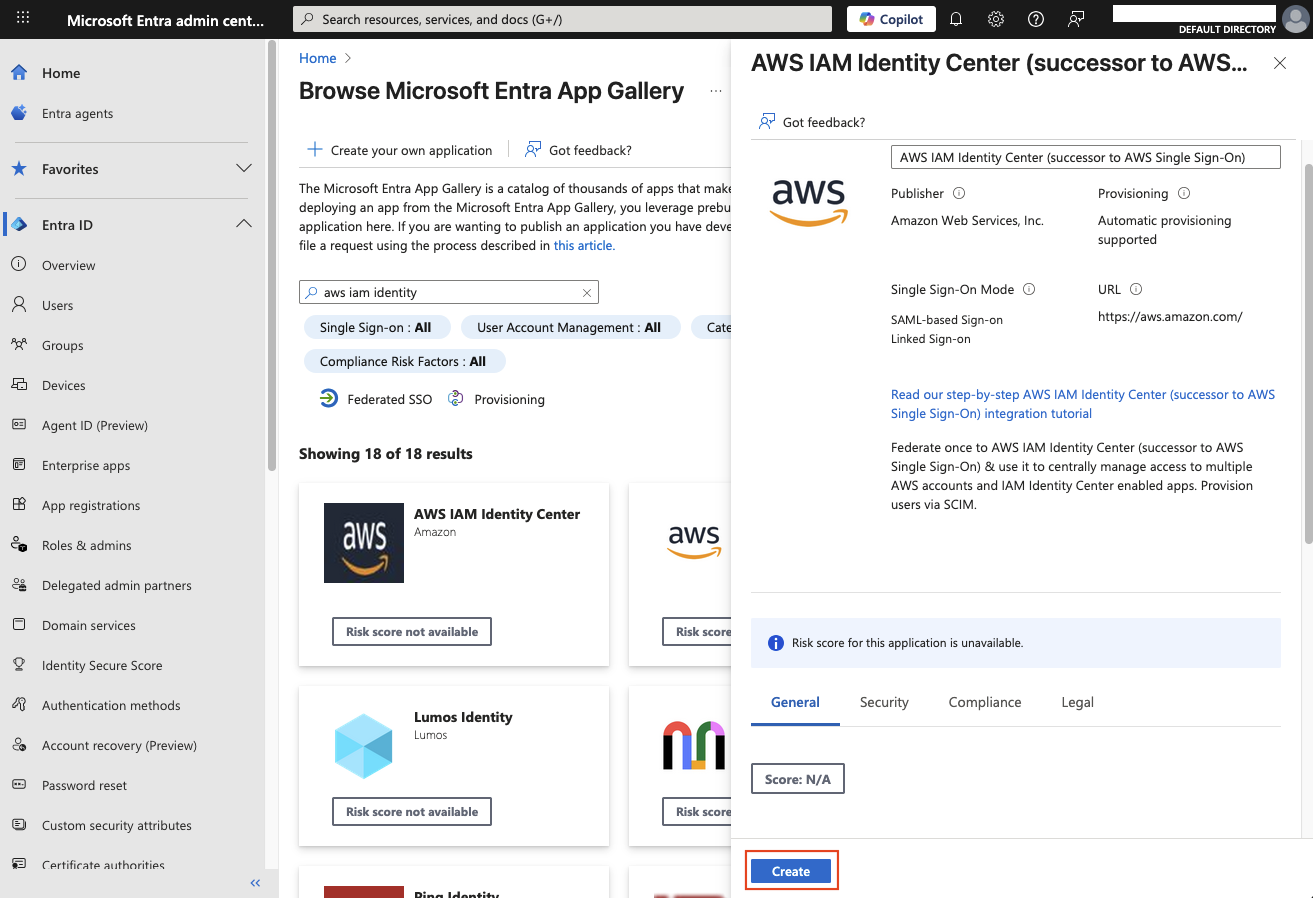
Search for AWS IAM Identity Center, select it, and click Create.
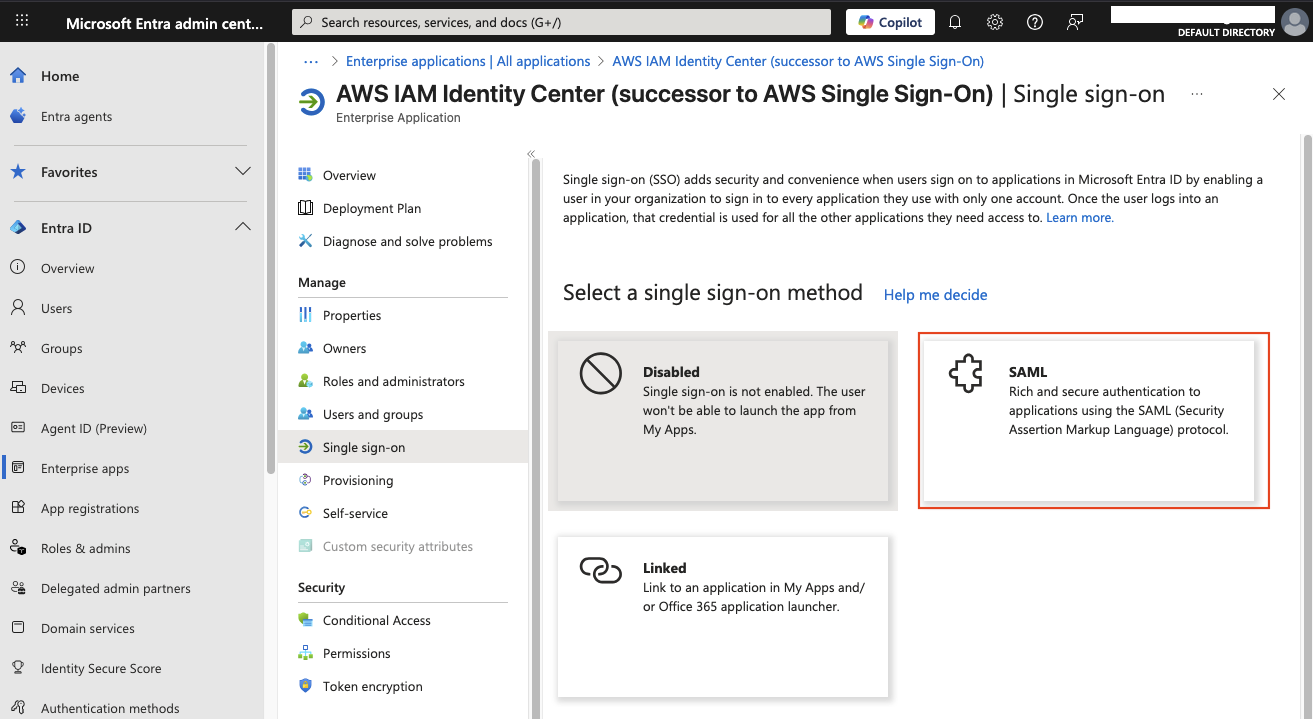
After the application is created, open it and select Single sign-on. Choose SAML to begin the SAML configuration.
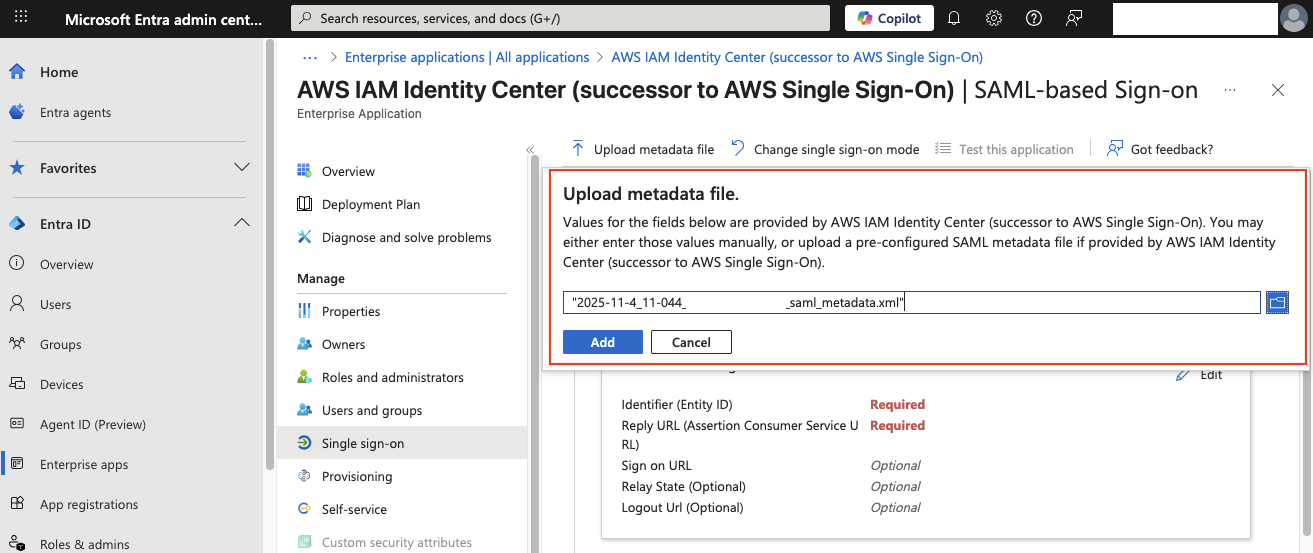
A new setup screen will appear. Click Upload metadata file and choose the metadata file downloaded from AWS. This automatically populates all required SAML values.
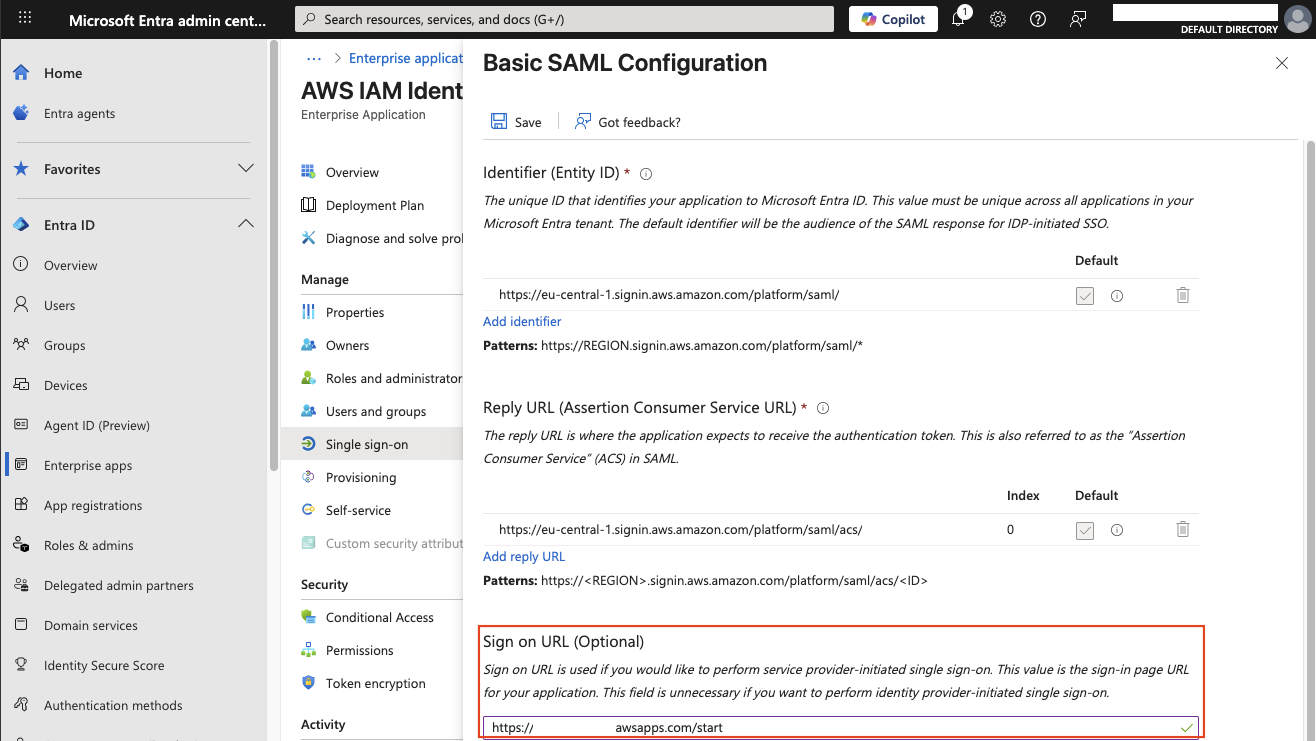
Before saving, scroll down and enter the AWS access portal sign-in URL you noted earlier. Then click Save to store the configuration.
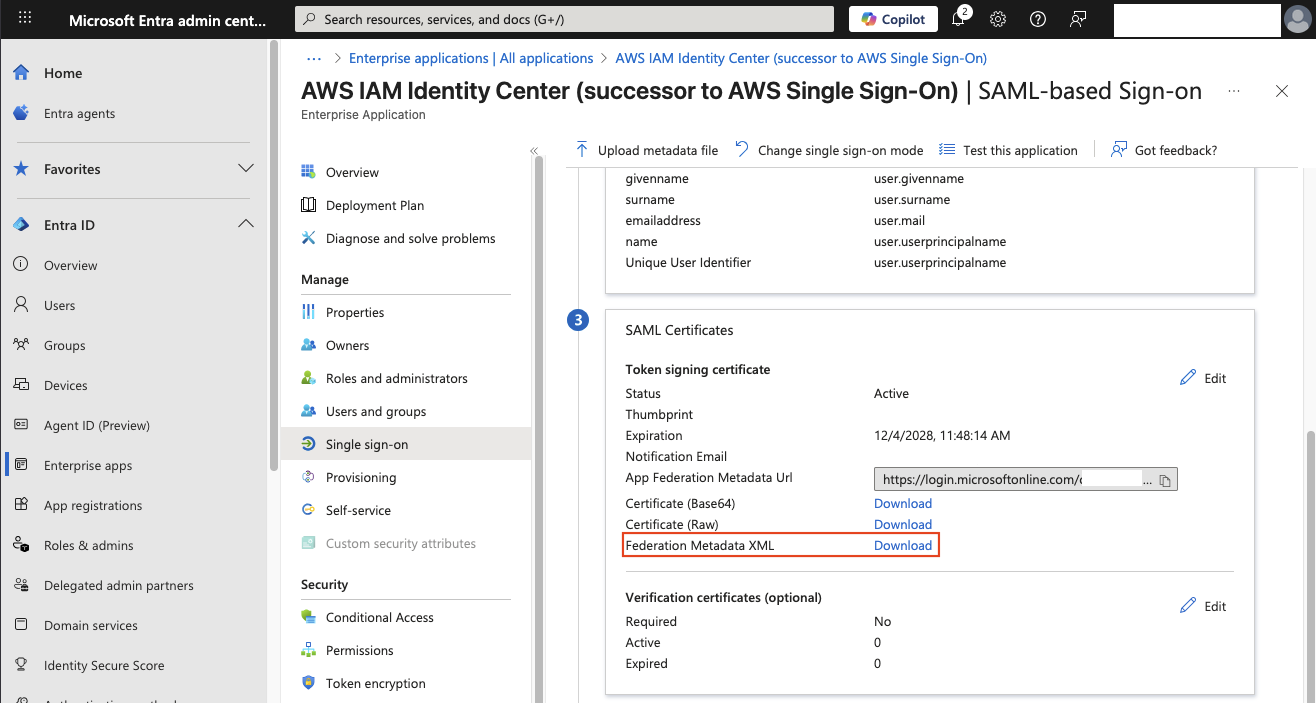
Next, download the Federation Metadata XML file from the SAML Certificates section. This file will be used to complete the setup back in AWS. Keep Entra ID open and return to the AWS Console.
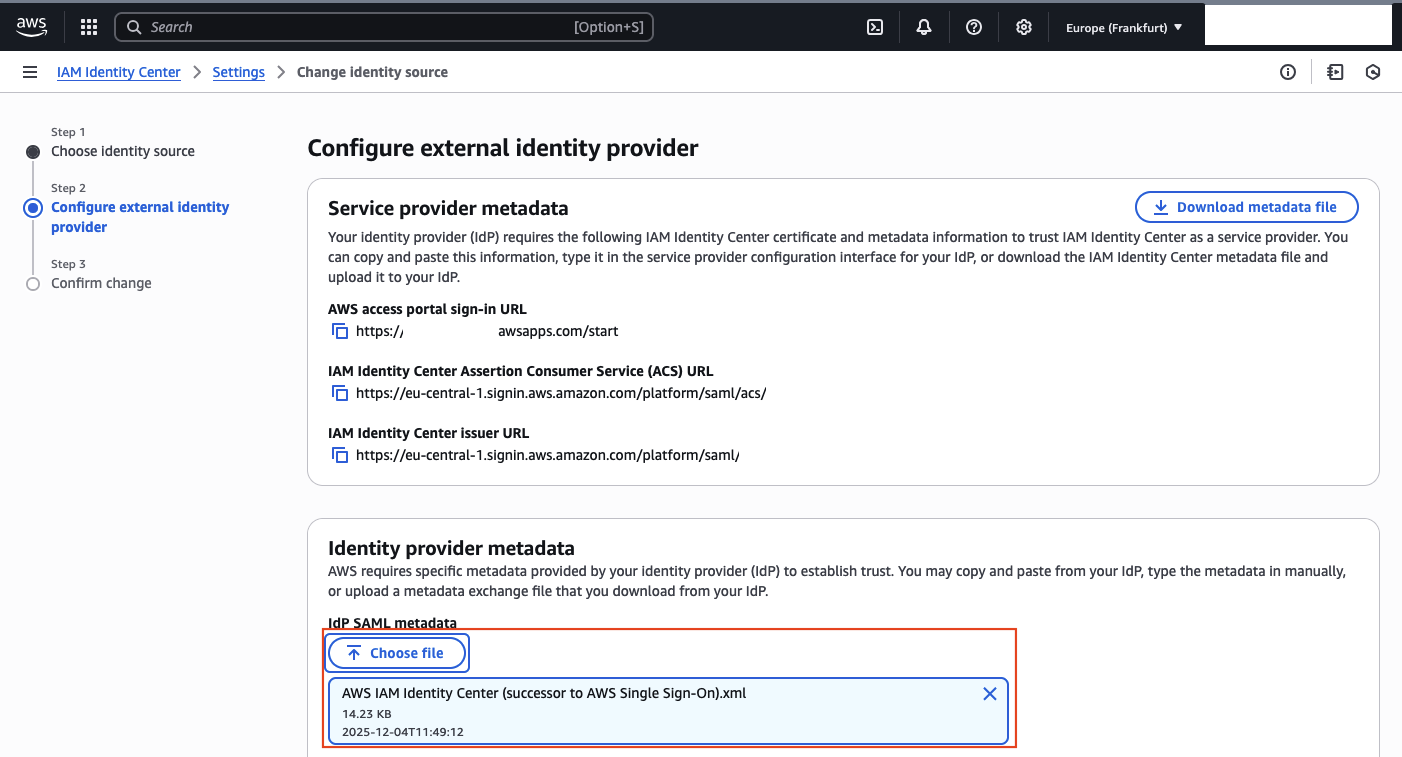
Back in AWS, upload the metadata file you just downloaded from Entra ID in the Identity provider metadata section. Continue with Next to complete the SSO with SAML setup.
Identity synchronization with SCIM
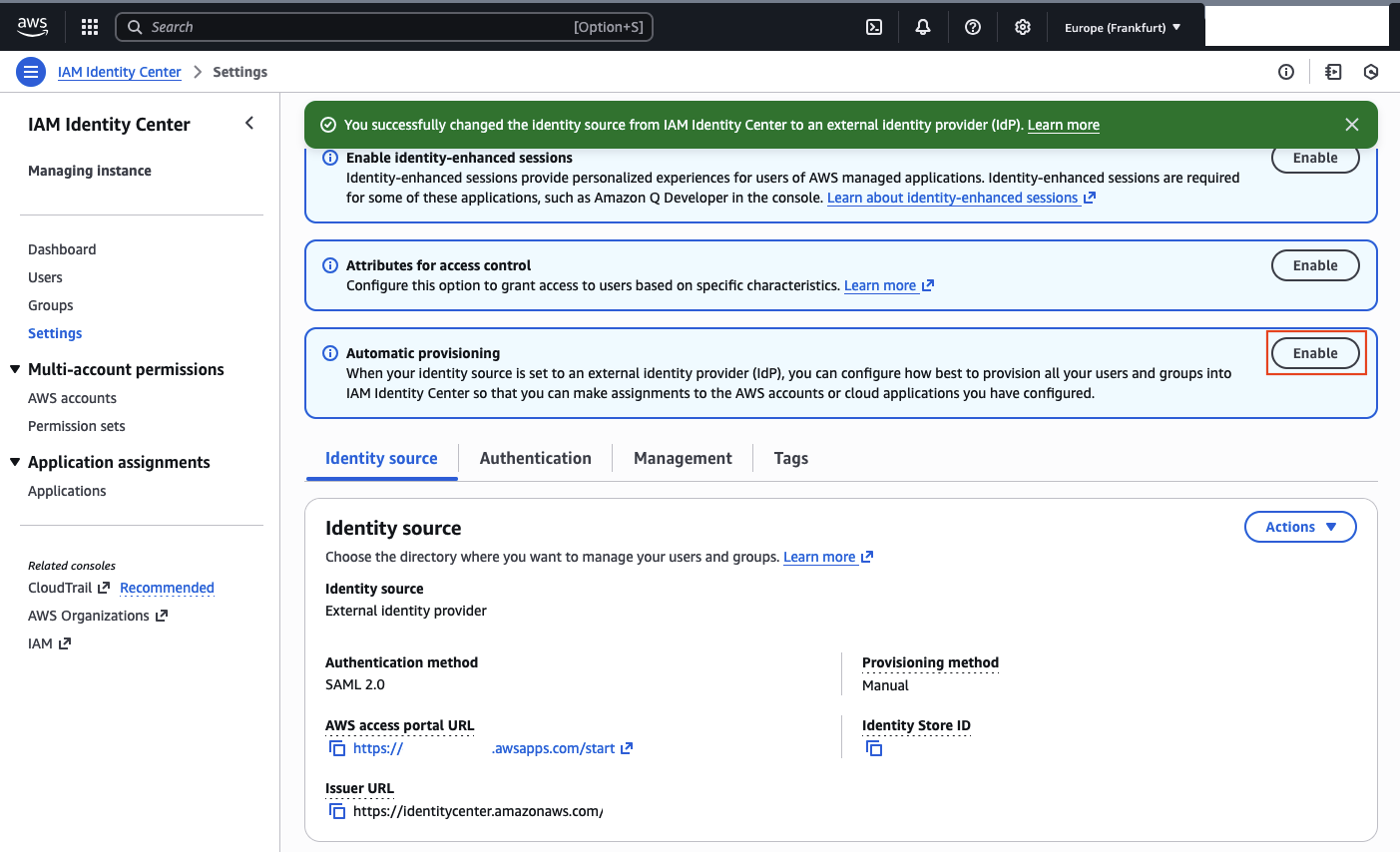
With SSO configured, the next step is to enable automated user and group synchronization using SCIM. In AWS IAM Identity Center, click Enable next to the Automatic provisioning banner.
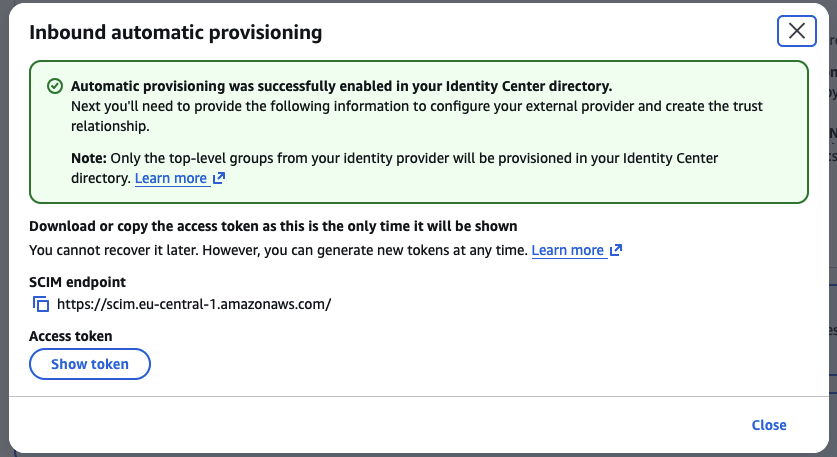
A window titled Inbound automatic provisioning will appear. Copy both the SCIM endpoint and Access token.
Warning
The Access token is displayed only once. Record it securely.
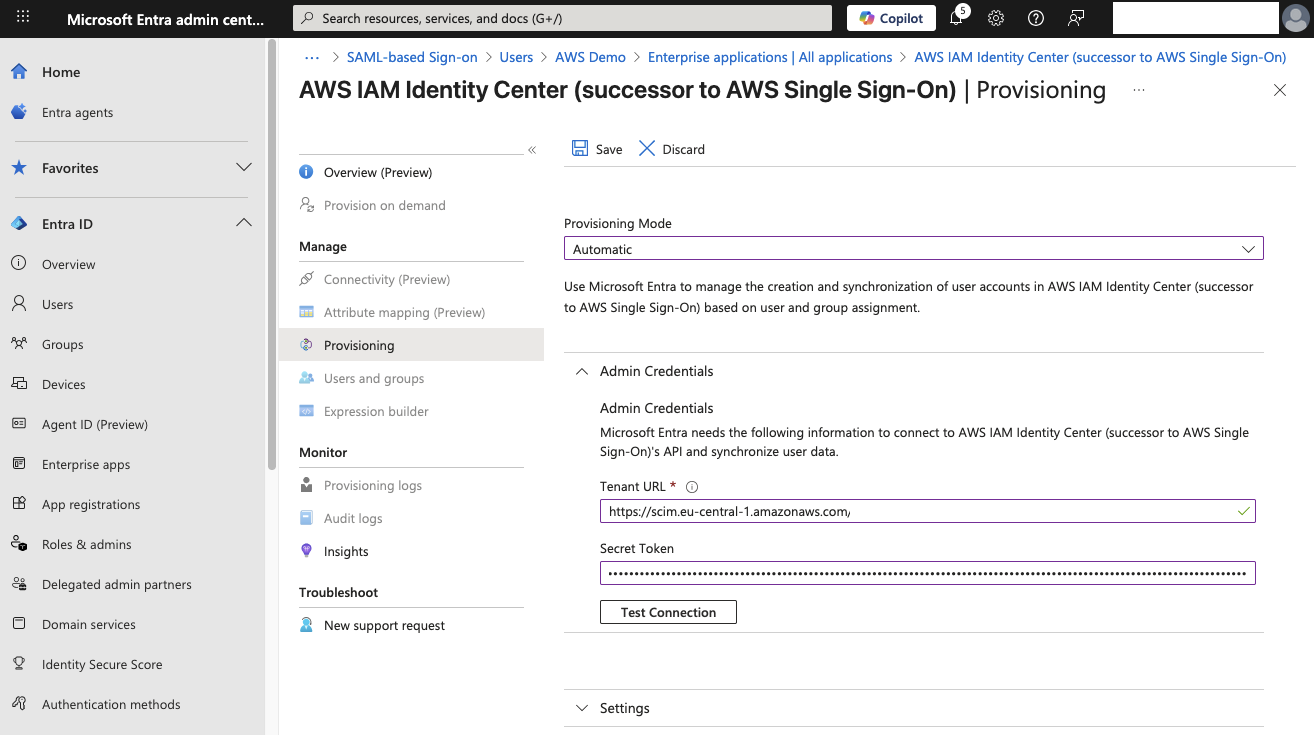
Return to Entra ID and open the AWS IAM Identity Center enterprise application. Select the Provisioning tab, set the mode to Automatic, and enter the following:
- Tenant URL → the SCIM endpoint
- Secret Token → the Access token
Click Save.
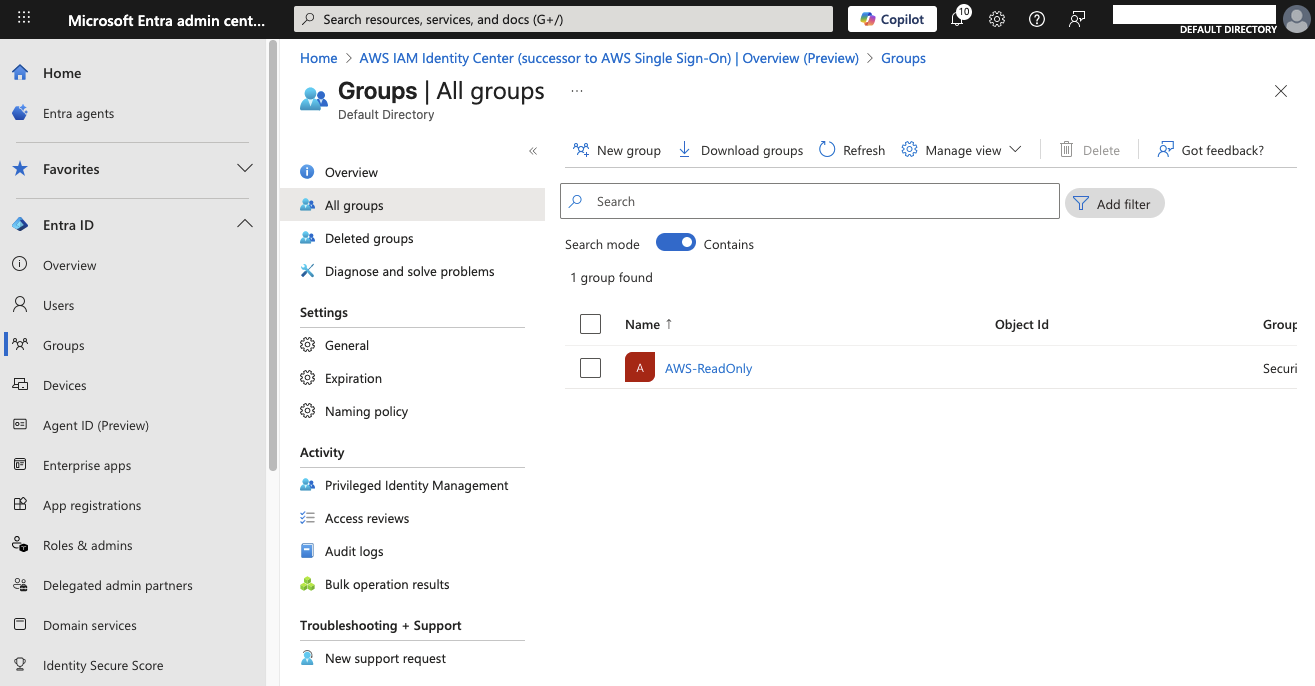
Next, create a sample group in Entra ID to test provisioning. Go to Groups, click New group, and create a group named AWS-ReadOnly.
Then create a test user. Go to Users, select New user, and create a user named AWS Demo.
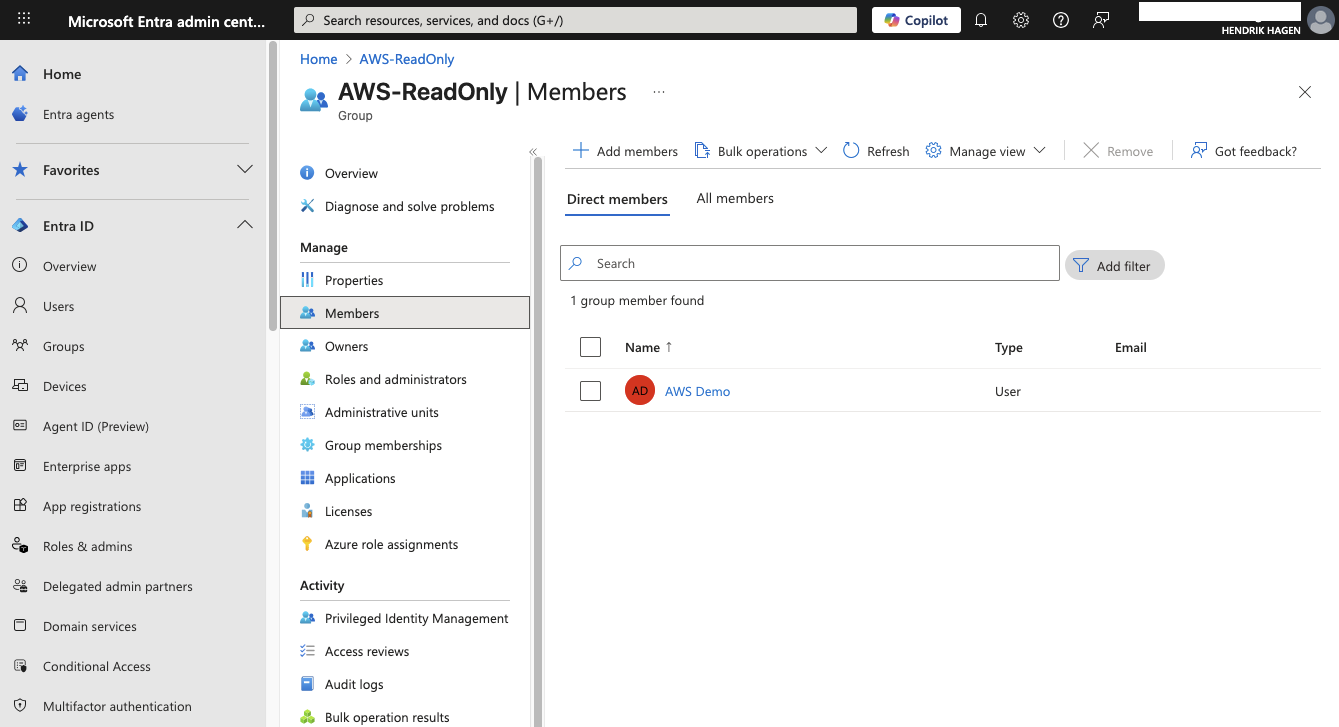
After the user is created, return to the AWS-ReadOnly group and select Add members. Add the AWS Demo user to the group.
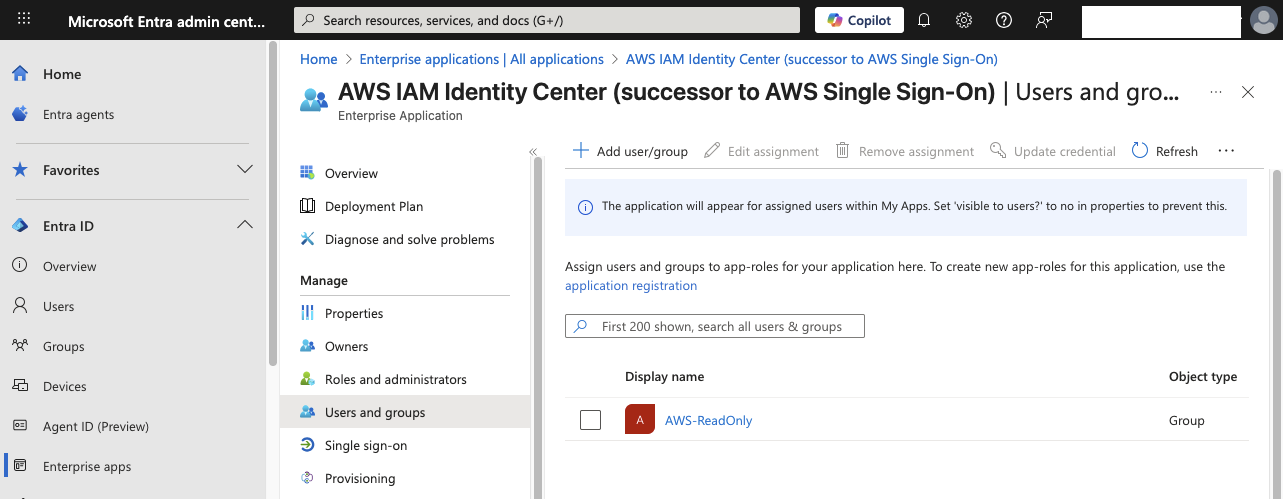
Now assign this group to the enterprise application. Open the AWS IAM Identity Center app in Entra ID, select Users and groups, click Add user/group, and choose AWS-ReadOnly.
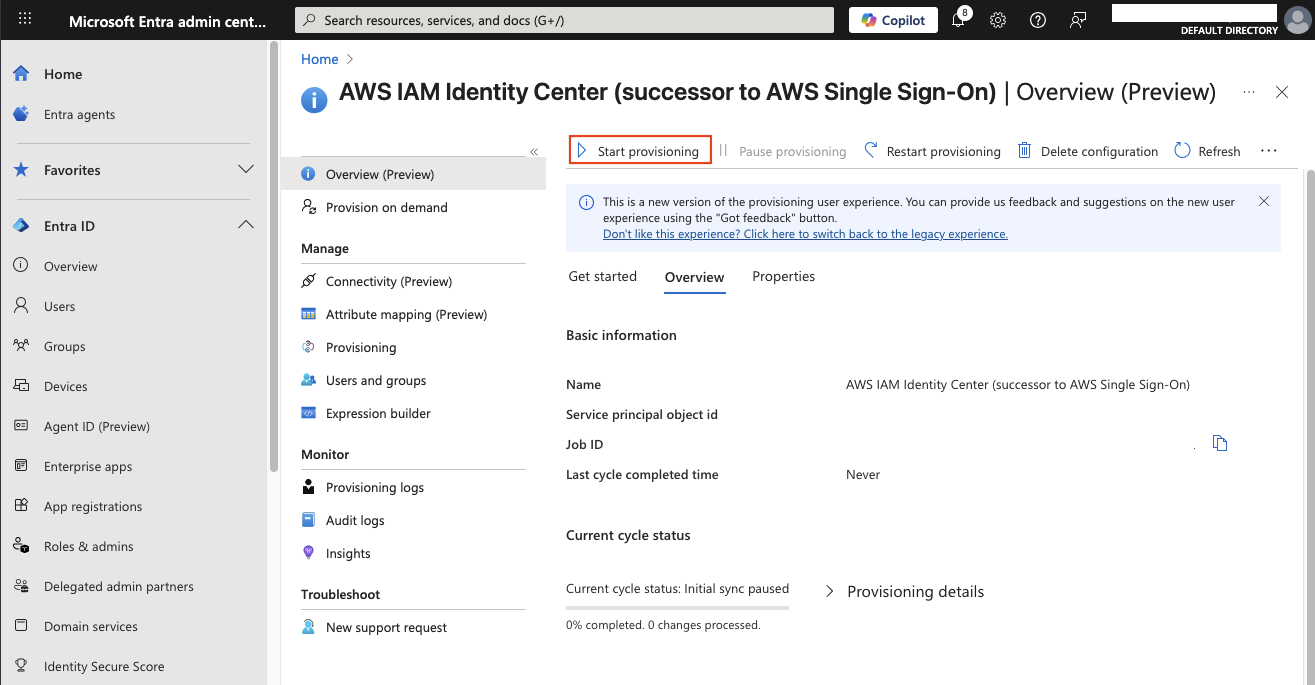
Next, open Provisioning, go to Overview (Preview), and click Start provisioning. Entra ID will now synchronize the group and its members to AWS IAM Identity Center.
Assign Permissions
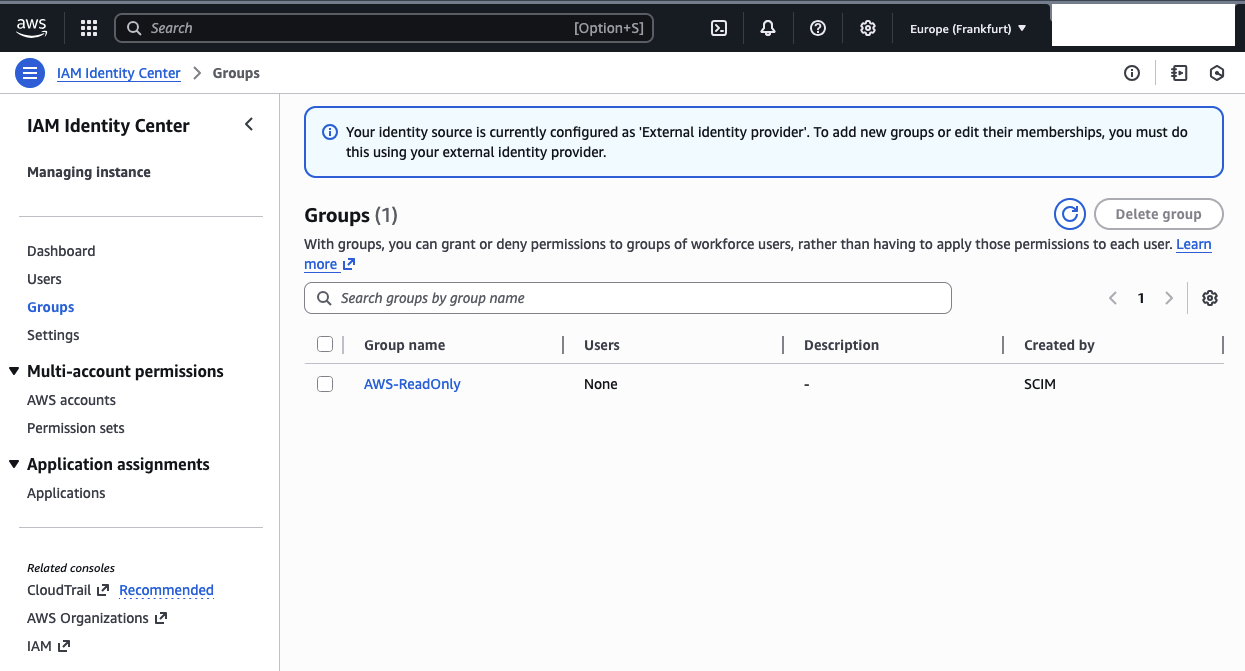
Once SCIM provisioning is complete, the group AWS-ReadOnly and the user AWS Demo will appear in AWS IAM Identity Center.
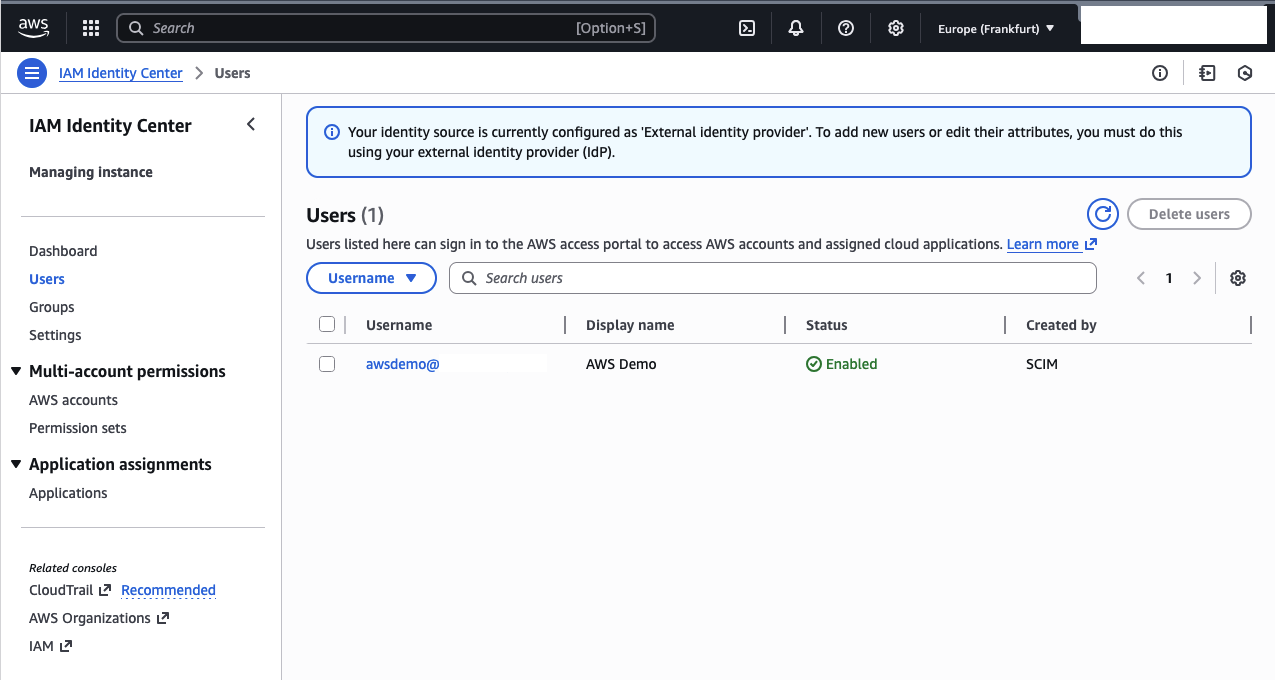
You should also see the user AWS Demo appear in the AWS IAM Identity Center Console.
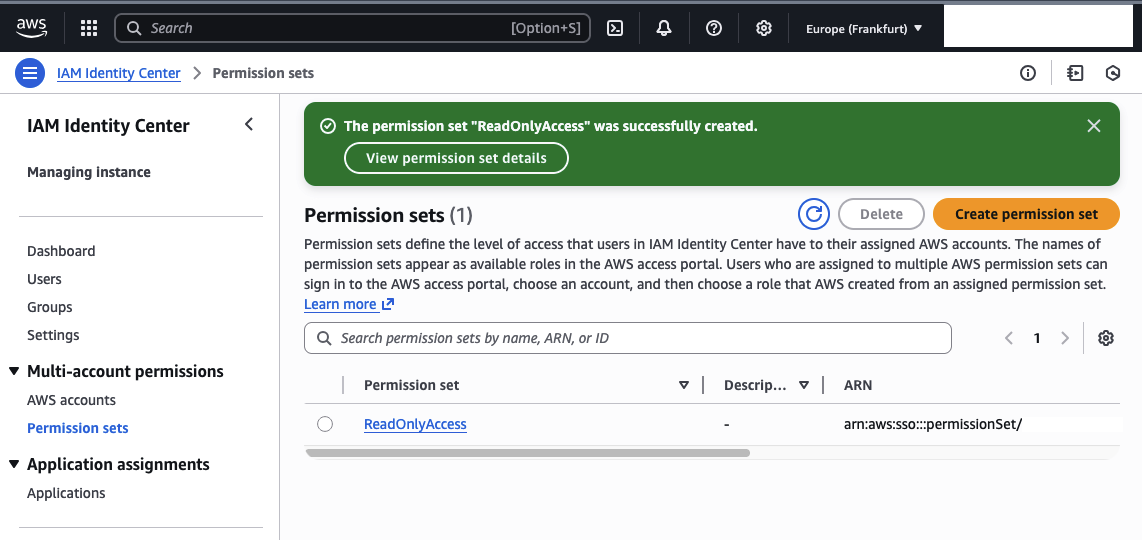
To grant AWS access, create a permission set. In IAM Identity Center, open Permission sets and click Create permission set. Select the AWS-managed permission set ReadOnlyAccess and finalize creation.

You should now see a new ReadOnlyAccess permission set in the list.
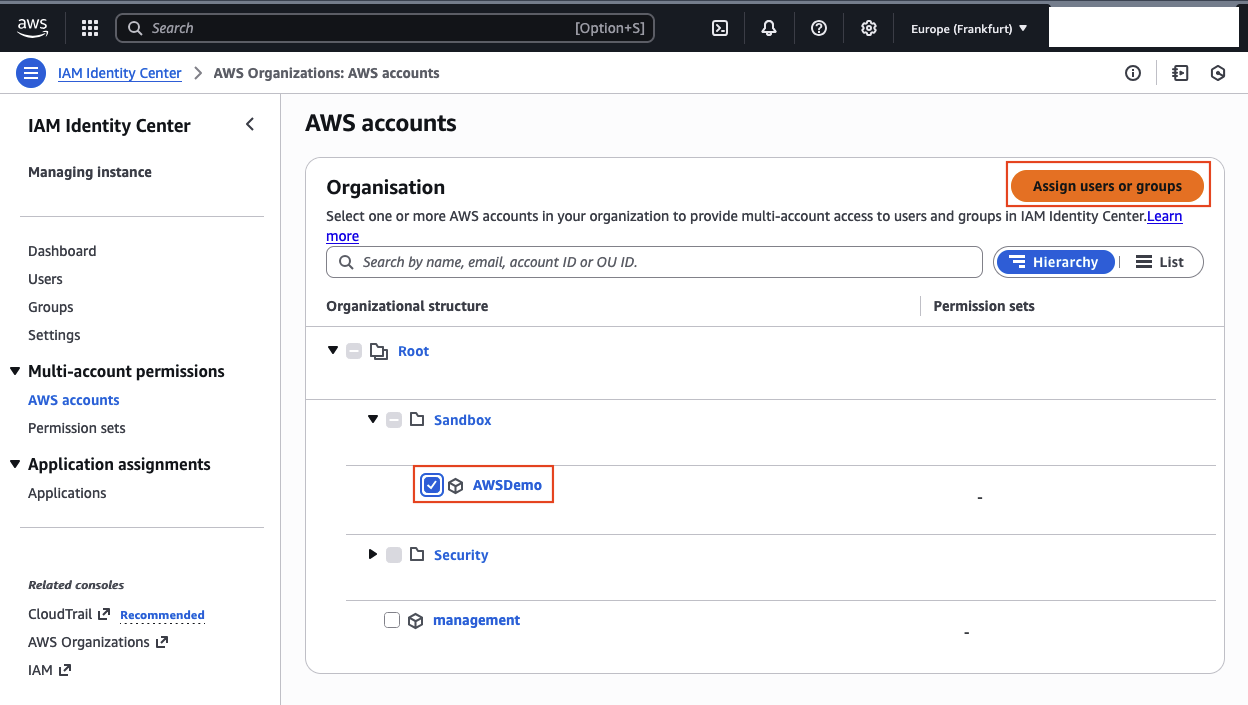
Next, assign this permission set to an AWS account. Go to AWS accounts, select the target account (for example AWSDemo), and click Assign users or groups.
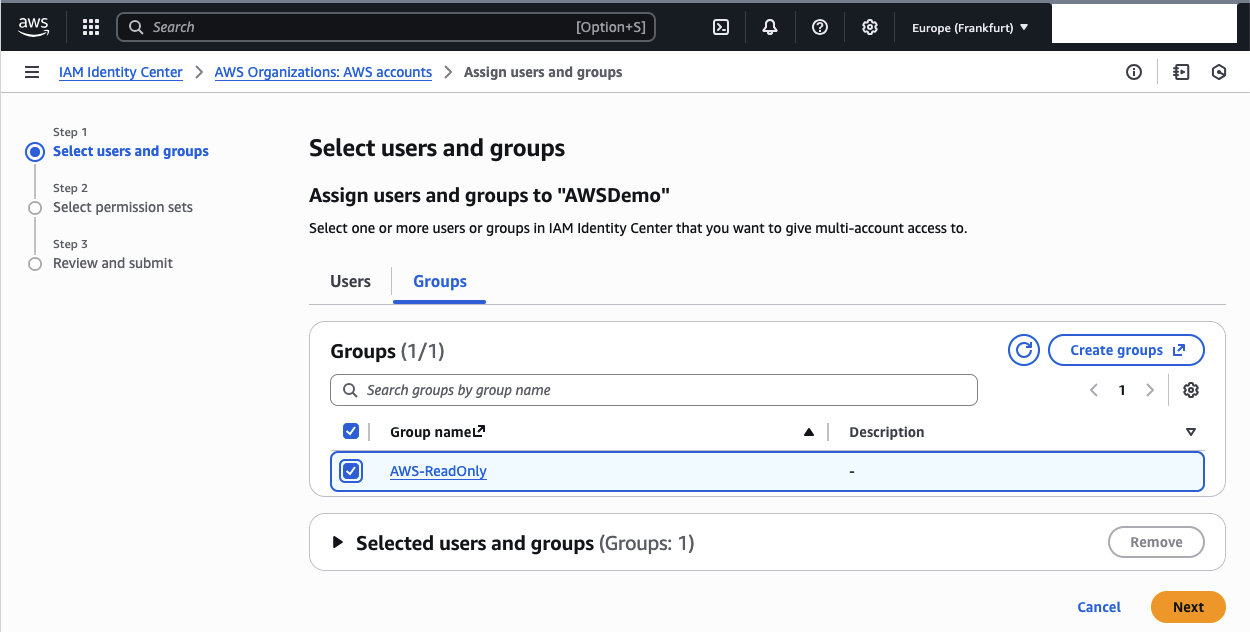
A new window will open up. Select the AWS-ReadOnly group and click Next.
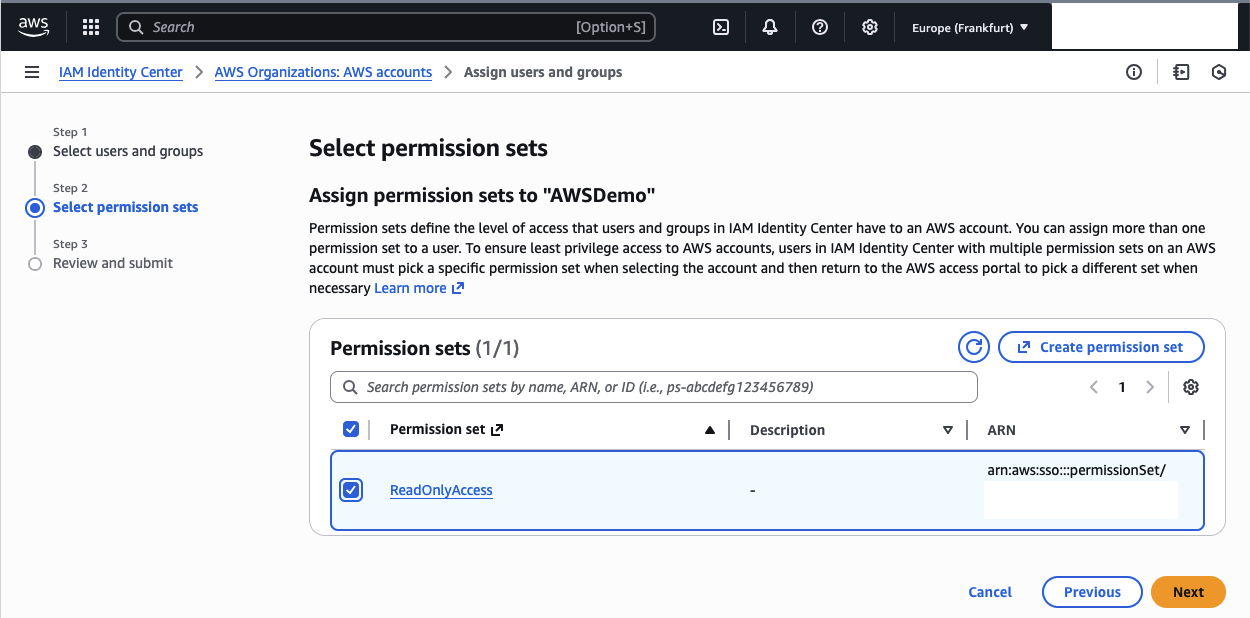
Next, select the ReadOnlyAccess permission set and click Next to review.
Members of the AWS-ReadOnly group now have read-only access to the AWSDemo account.
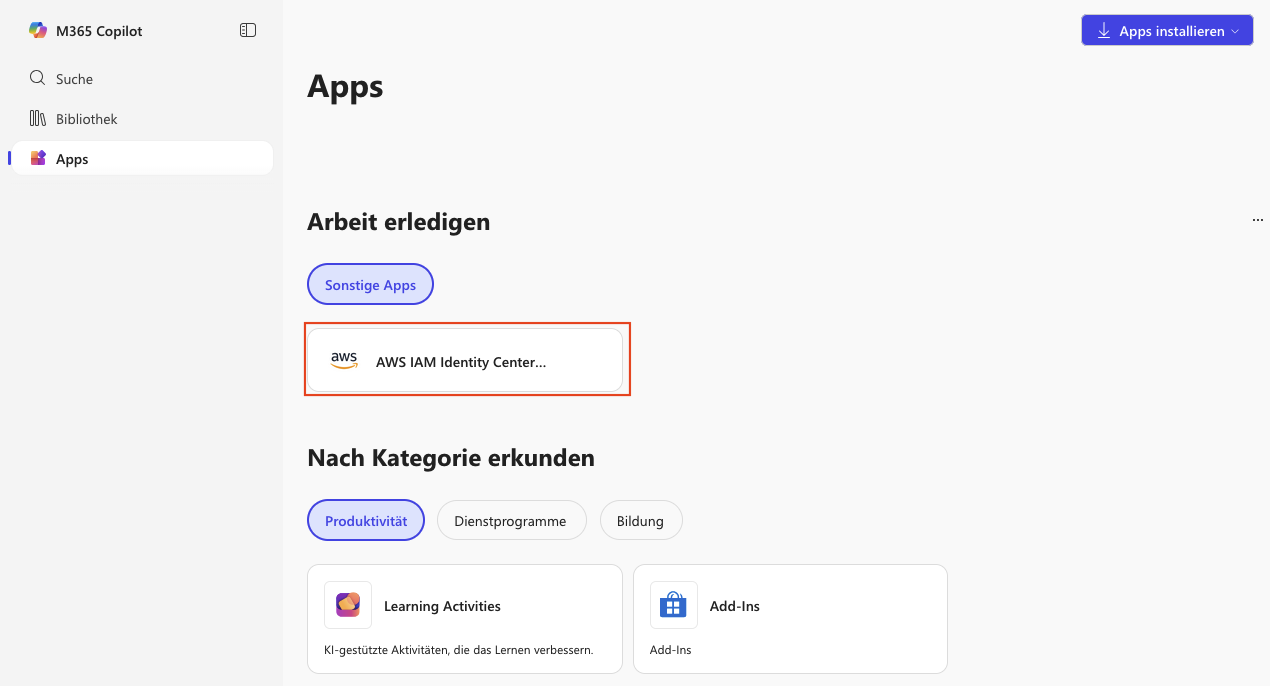
To test the setup, log in with the AWS Demo user in Entra ID and open the Microsoft Application Console. You should see the AWS IAM Identity Center application. Clicking it should redirect you to AWS IAM Identity Center.
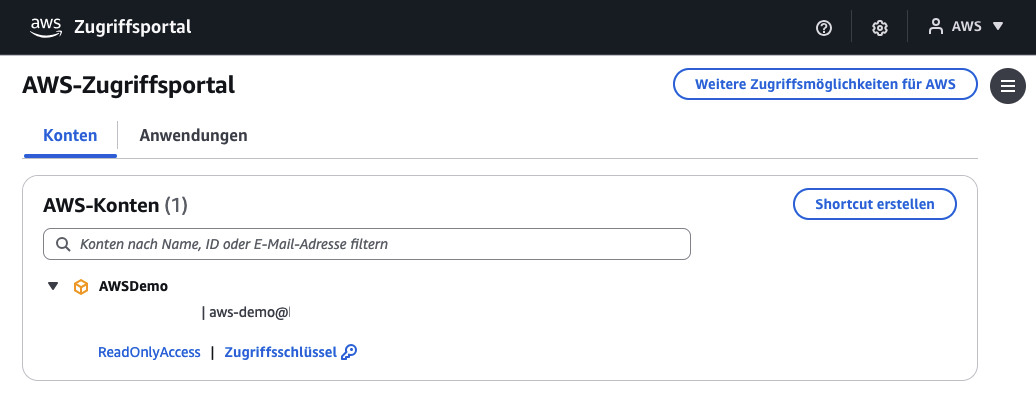
The user will see the AWSDemo account with the ReadOnlyAccess permission set assigned.
Summary
Congratulations! You’ve successfully configured SSO with SAML and enabled automatic identity synchronization using SCIM. With this setup, you can fully leverage centralized identity management in Entra ID, streamline your Identity and Access Management processes, and strengthen the overall security posture of your environment.
I hope this walkthrough was helpful and that you picked up something new along the way. I’d love to hear your feedback and am happy to answer any questions you may have.
— Hendrik
Title Photo by Clem Onojeghuo on Unsplash